How do you copy and paste between your phone and computer?
Each company built a clipboard bridge for its own hardware first, so the right method depends on the pairing. Every row below is sourced from the vendor’s own page, linked in the section that follows.
| Built-in tool | What it moves | What it needs | |
|---|---|---|---|
| iPhone or iPad to Mac | Universal Clipboard | Text, images, photos, video | Same Apple Account, Bluetooth, Wi-Fi, Handoff, devices nearby |
| Android to Windows | Phone Link | Text and images | A supported phone, paired with Phone Link |
| Android to Android, Chromebook or Windows | Quick Share | Files and links, clipboard on some phones | You pick what to send each time |
| iPhone to Windows, or Android to Mac | Nothing built in | Whatever your app supports | A cross-platform app, or send it to yourself |
How do you set up Universal Clipboard on Apple devices?
Copy on one Apple device with Cmd+C, or tap and hold then Copy, and paste on the other with Cmd+V. There is no button to press per copy. Apple’s Universal Clipboard page lists four requirements, and it works between a Mac, an iPhone, an iPad and an Apple Vision Pro.
- Put the devices near each other. Apple’s wording is “your devices are near each other”.
- Sign both in with the same Apple Account.
- Turn on Bluetooth and Wi-Fi on both.
- Turn on Handoff, which is on by default. On an iPhone or iPad, Apple’s Handoff page says to open Settings, tap General, tap AirPlay & Continuity (older systems call it AirPlay & Handoff), then turn on Handoff. On a Mac, open System Settings, click General, click AirDrop & Continuity (older systems: AirDrop & Handoff), then turn on “Allow Handoff between this Mac and your iCloud devices”.
One thing people get wrong: there is no published time limit. Apple says the copied item “remains there briefly, or until you replace it by copying something else on either device”. So paste it soon, and do not copy anything else in between. When it stops crossing over, it is almost always one of the four requirements above, which we walk through in Universal Clipboard not working.
How do you share a clipboard between Android and Windows?
Microsoft’s Phone Link app on the PC, with Link to Windows on the phone, connects an Android phone to Windows 10 or 11. Microsoft’s setup page has the pairing steps. Once paired you can read and send texts, see notifications, and on supported phones copy on one device and paste on the other.
- Check your phone is on the list. Microsoft’s page for this feature names “Surface Duo and select Samsung and HONOR and OPPO and ASUS and vivo and Xiaomi devices”. Samsung phones need One UI 2.1 or above. That is a much wider list than it used to be.
- Install Phone Link on the PC and Link to Windows on the phone. Link to Windows is already built into many Android phones.
- Pair them and give the phone the permissions it asks for.
- Copy on one device and paste on the other. Nothing else to press.
Two limits from the same Microsoft page. It carries text and images only, and images above 1 MB are resized. And you cannot copy content out of a Samsung Secure Folder to your PC, though copying into one is allowed. If you keep a clipboard history on the phone itself, our guide to the Android clipboard history shows where it lives.
Phone Link does not sync the clipboard from an iPhone. Its iPhone support covers messages, calls and notifications.
Quick Share, and what it is really for
Quick Share, formerly Nearby Share, sends files and links between nearby devices. Google says it works on “Android 6+ devices, Chromebooks, and on select Windows PCs through our Quick Share for Windows App”, so Windows is now a supported end. On select Android 13 and later devices you can also share what is on your clipboard with it. A Pixel 8a or later, and certain Samsung, OPPO, OnePlus, vivo, Xiaomi, HONOR, Transsion and Motorola phones, can send to AirDrop as well.
It is closer to AirDrop than to a shared clipboard. You pick what to send and which device to send it to, every time. For one link that is fast and tidy. For a running clipboard it is the wrong shape.
How do you copy between an iPhone and Windows, or Android and a Mac?
This is the awkward pairing, because no single company connects both ends. Apple will not put Universal Clipboard on Windows, and Microsoft’s cross-device copy and paste skips the iPhone. Your options are an app that runs on both, covered below, or the fallback that never lets you down, covered next. For files and photos from an iPhone, our guide to AirDrop for Windows compares the options.
The fallback that always works
When the built-in tools do not line up, send the text to yourself. Open a chat or note app you have on both devices, paste the text into a message to yourself, and pick it up on the other side. WhatsApp, Telegram, Signal, your email drafts or a synced notes app all work. It feels low-tech, and it crosses every platform boundary without depending on the right Bluetooth toggle. For a single link it is often faster than working out why a fancier method went quiet. We rank the quickest versions of this in how to send a link from your phone to your computer.
Cross-platform tools for a mixed setup
If you live across brands, an app that treats every device the same is the cleaner answer. Three kinds are worth knowing.
- KDE Connect. Free and open source, it links a phone and a computer over your local network. Its documentation lists Linux, Windows, macOS, Android and iOS, and its clipboard plugin shares the clipboard between devices. Two catches from the same page: it does not work with images, and on Android 10 and later the system blocks the automatic half, so you have to send the clipboard by hand unless you go out of your way to work around it.
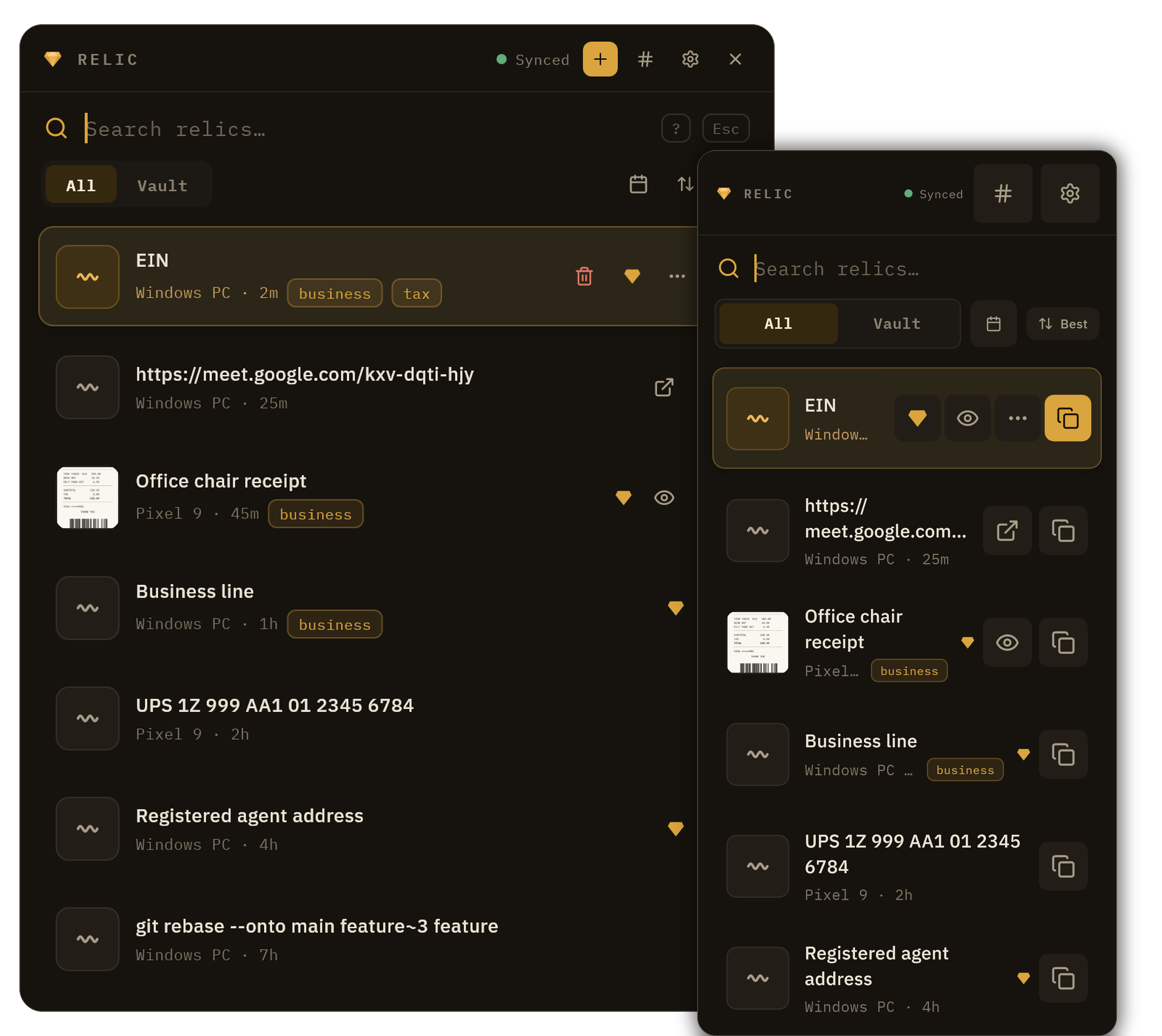
- Clipboard managers that sync. These keep a history on each device and sync it through an account, so anything you copy on one is searchable on the others. This is the category Relic sits in. If the idea is new, our guide to clipboard managers explains what they do.
- Send-to-self apps. Pushbullet is the long-running one for pushing links and text between devices. It is no longer the only option, and we compare the current ones in Pushbullet alternatives.
One pairing has its own quirks: copying into or out of a remote session. If text will not cross between your local machine and a remote desktop, the cause is usually clipboard redirection rather than the devices themselves, and the fix is in Remote Desktop copy and paste not working.
A history instead of a handoff
Every method above moves one item, right now, if the conditions are right. A clipboard manager does something different: it keeps what you copy and lets you search it later, from any device you have signed in. Relic works that way, and it is worth being exact about which half is automatic.
- On your computer, capture is automatic. Windows, Mac and Linux let an app watch the clipboard, so every copy is kept without you doing anything.
- On your phone, you put things in on purpose. Neither Android nor iOS lets any app watch the clipboard in the background, and Relic does not pretend otherwise. On Android you share to Relic from any app, tap a Quick Settings tile to grab what you just copied, or use the plus button. On an iPhone you share to Relic, run a shortcut bound to the Action Button or a back tap, or use the plus button.
- Both directions are searchable. Something copied on your desktop is on your phone, and something you shared into Relic on your phone is on your desktop, with no brand matching and no time window to beat.
- Sealed on your device. Each item is encrypted before it is sent, so the server holds bytes it cannot read.
The privacy question to ask any of them
Every method here moves your clipboard somewhere. The question worth asking is whether the tool can read the text on its way through. Apple documents the four requirements for Universal Clipboard and Microsoft documents which phones its clipboard sharing covers, but a small third-party sync tool may pass your copied text through a server in readable form, so your passwords and private notes briefly live on a computer you do not control. The protection to look for is end-to-end encryption, where the text is scrambled on your device before it leaves and can only be opened on your other devices. The same question applies to anything that stores an iPhone clipboard history or a Windows clipboard history in the cloud.
Match the tool to your hardware. All Apple, use Universal Clipboard. Android and Windows on a supported phone, use Phone Link. For everything in between, use a cross-platform app or send it to yourself, and be fussy about who can read what you copy.
Sources
- Use Universal Clipboard to copy and paste between your Apple devices, Apple Support (2026)
- Use Handoff to continue tasks on your other Apple devices, Apple Support
- Seamlessly transfer content between your devices, Microsoft Support
- Use Quick Share on your Android device, Android Help
Frequently asked questions
Your next step
Pick the row in the table that matches your two devices and follow that section. If your pairing has nothing built in, or you want the copy to still be there next week, the setup pages for the phone side are capturing on Android and capturing on an iPhone. Both are readable without an account.