How to turn on Windows clipboard history
Clipboard history ships with Windows 10 and Windows 11 and is off until you switch it on. Three steps:
- Press Win+V. The clipboard panel opens next to your cursor.
- Click Turn on. Microsoft’s instruction is “select Windows logo key + V, and then select Turn on”. You only do this once. You can also switch it on under Settings > System > Clipboard.
- Copy a few things, then press Win+V again. Click an item to paste it where your cursor is, or click the pin on an item you reuse.
Four limits are worth knowing before you rely on it. All of them come from Microsoft’s clipboard page:
- 25 entries. “Your clipboard history is limited to 25 copied entries.” Copy a 26th and the oldest falls off.
- 4 MB per item. Text, HTML and bitmap are the formats it holds.
- Cleared on restart. “Clipboard history gets cleared each time you restart your PC, except for the items you’ve pinned.”
- Sync is a separate switch. On Windows 11 it is called Clipboard history across your devices and Microsoft says it is tied to your Microsoft account or your work account. Windows 10 calls the same switch Sync across devices. It carries the clipboard to your other Windows PCs.
What Win+V will not do
The panel has no search box, so you scroll. Nothing older than your last 25 copies is in it. Nothing you copied on your phone is in it either. And a reboot takes the whole list with it unless you remembered to pin. Win+V is built for “paste the thing from a minute ago”. It was never built for “find the license key I copied last month”.
How to install Relic on Windows
Relic is a clipboard manager. It runs in the background, keeps what you copy, and lets you search it. One line installs it:
The installer works too, from the buttons below. Either way Relic installs into your own user account, so Windows never asks for an administrator, and you get a Start menu shortcut.
- Where it lives. Relic has no taskbar window. It sits in the notification area beside the clock. Left-click the icon to open the window, right-click it for the menu. It starts with Windows and comes up hidden.
- The keys. Ctrl+Shift+Q opens the window. Ctrl+Shift+Space opens a small picker where you are typing. Ctrl+Shift+1 to Ctrl+Shift+5 paste your five most recent items without opening anything.
- The command. The installer puts a
reliccommand in a folder beside the app and adds it to your PATH, so a script or an agent in your terminal can reach the same vault. - Your data. Everything Relic keeps on this PC lives in
%APPDATA%\relic. The key to your vault sits in Windows Credential Manager.
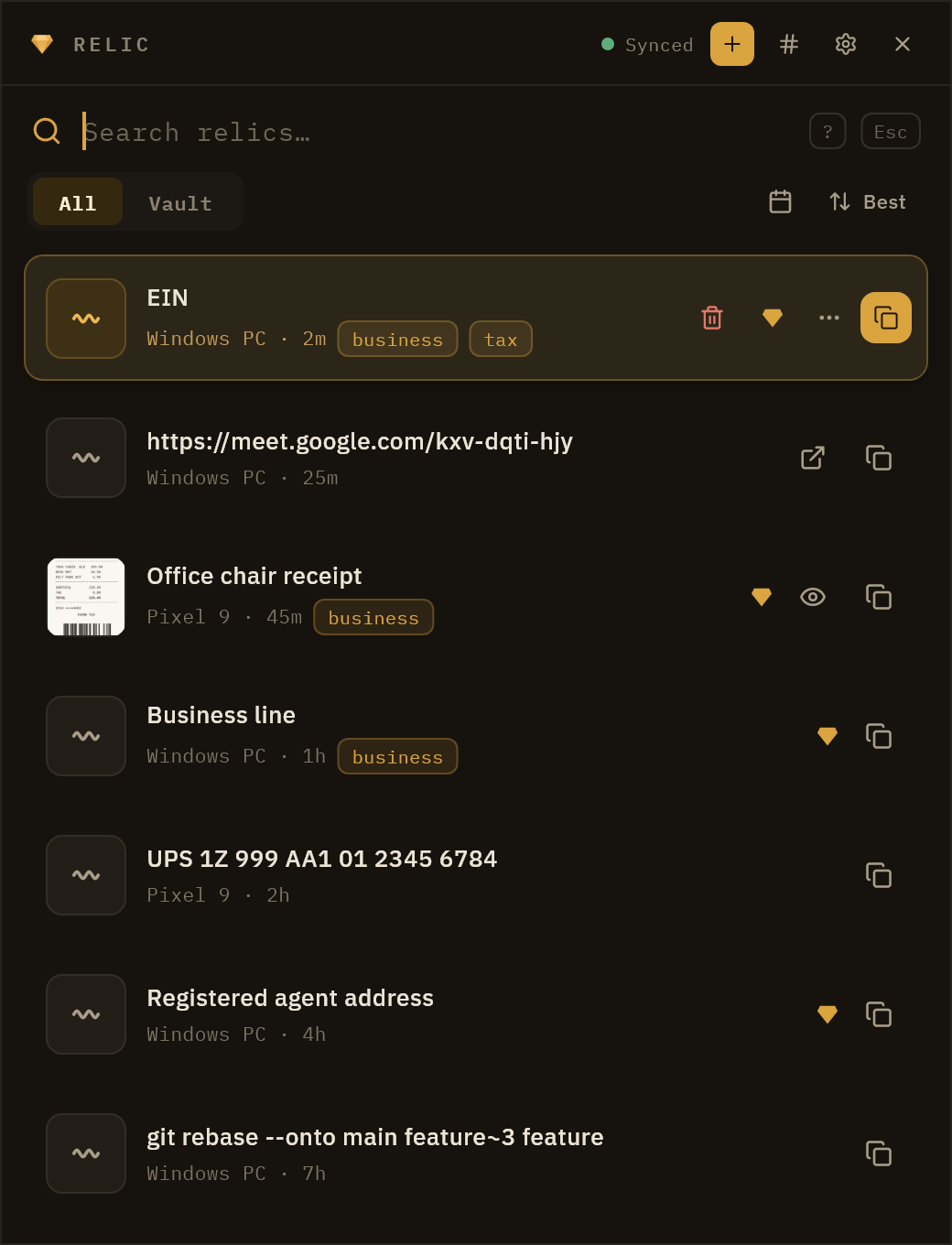
Relic on Windows covers the tray menu, changing a shortcut, updates and the log file.
Win+V and Relic side by side
| Relic free | Relic Pro | Win+V | |
|---|---|---|---|
| Built into Windows | |||
| Automatic background capture | |||
| How many copies it keeps | The last 500, plus 100 you save | As many as you want | 25 |
| Largest single item | 10 MB | 100 MB | 4 MB |
| What it holds | Text, images, files | Text, images, files | Text, HTML, bitmap |
| Survives a restart | pinned items only | ||
| Search your history | |||
| Reads text in screenshots | |||
| On your phone as well | |||
| End-to-end encrypted | not documented |
The free plan is a real plan with real numbers: 250 MB of storage, 10 MB for any single item, the last 500 copies, 100 items you save on purpose, and 3 devices. Copies past 500 are held back rather than deleted, and they come back on the next sync if you move to Pro. Plans and limits has the whole grid.
For scripts and agents: the relic command
This is the part no built-in panel has. Open a new terminal after installing and your vault is scriptable:
relic status tells you whether the app is installed and what is in the local vault. Search prints a uid for each hit, and -q prints only the uids so you can pipe them. relic export <uid> .\shot.png writes a picture or a file out of your vault. It reads and writes the same vault the app is using on this computer, with no account and no network of its own. The relic command has the full list.
Which one should you use?
If you only ever paste something from a minute ago on one PC, Win+V is already there and costs nothing. Turn it on. If you keep losing things, want to search what you copied last week, or want a copy from your desktop on your phone, that is the gap Relic fills. Windows 11 changes a few details of the built-in panel, and we cover those in clipboard history on Windows 11. If copy and paste itself has stopped working, see copy and paste not working on Windows 11.
Frequently asked questions
Your next step
Run winget install relic, or use the Windows button above. Then the first five minutes shows what happens once it is running, and Relic on Windows covers the tray, the keys and the data folder. Both are readable without an account.